YouTube, Algrow and an agent that does your research, in one window. Download it, sign in with your Algrow account, and ask your first question in about 15 minutes.
An agent that does your YouTube research for you, right where you browse. The Agent sits beside YouTube and Algrow in one window. It sees the page you're on, uses Algrow's research tools to answer, and drives Algrow in front of you. Every step streams live, and you can open anything it looked at. Drag in a video or a channel and ask.
Copy the link, paste it into a tool, read a transcript
Ask the Agent while you watch
See its algorithm
A new Google account and Chrome profile per niche
One click: New space
Train the feed
Watching videos by hand for days
About 6 minutes, in the background, or ask the Agent
Check every morning
Open five tabs and look for what changed
A daily task runs it and sends a notification
Foreign-language niches
Copy titles into Google Translate
Pages translate as you scroll
Who it's for
Starting a channelTrain a space on the niche and study what YouTube pushes before you make video one.
Growing a channelTrain on your top competitors and see what their viewers get recommended.
Running several channelsOne space per channel or client, with their own feeds and tabs.
Get Started
Your first 15 minutes
Try these first. They're what makes the app different.
Install and sign in with your Algrow account. See Install.
Drag a video card into the chat (⌘J opens the Agent) and ask it to break the video down. Watch each step stream in, and click one to open what it looked at.
Train a space on a competitor. Tell the Agent: “make a space from @channel and train it”. Or open the space menu, pick New space from a niche or channel, then From a channel, and paste their link.
Let it train. Keep working in other tabs while its six videos play. The chat shows the training live.
Ask the Agent: “What is YouTube pushing in this space, and what's working?” It reads the space's home feed in the background and you watch it scroll in the chat.
Make it a daily task. Click the clock under that answer, pick a time, and it runs every morning with a notification when it's done.
Tell us what happened. If anything broke, use Help → Send Logs to Algrow… (see Updates & help).
Click Download for Windows and open the file. It installs by itself.
Windows may say "Windows protected your PC". Click More info, then Run anyway. This shows because the app isn't signed for Windows yet.
Open Algrow and sign in.
On Windows, use Ctrl wherever this guide says ⌘, and the ⋮ menu for everything in the Mac menu bar.
Set up the Agent
The Agent runs on your own Claude account through Claude Code, Anthropic's free command-line tool. The Claude app on its own isn't enough. The first time you open the Agent (⌘J), the Connect Claude card walks you through it for your system: how to open Terminal or PowerShell, the install command to paste, then a new window to sign in. Each step has a Copy button, and the card checks by itself when you're done. It takes about two minutes.
On Windows, Claude Code installed with npm works too.
The Agent sits on the right (⌘J). It sees the page you're on and uses Algrow's research tools to answer, so you never copy a link into a chat again.
It sees your screen
The video you're watching
“Summarise this video and tell me what people are saying in the comments.” It reads the transcript and the top comments.
It gets the exact numbers, the full transcript and the top comments from YouTube, for any video.
A YouTube search or home feed
On a YouTube search: “Which of these videos are breaking out right now, and what do the winners have in common?”
A video too new for Algrow shows live YouTube numbers, marked Live from YouTube.
Any Algrow page
On Viral Videos, a channel or a trend, ask about what's in front of you: “Why is this one doing so well?”
The Agent
Research by asking
A YouTube researcher on call, with all of Algrow behind it. Ask a question the way you'd ask a person. The Agent runs the searches, reads the results, tells you what matters and why, then opens the page with the filters set so you can check it yourself.
“Find channels started in the last 6 months, in any language, that sell digital products, got over 20K views in the last 48 hours and are monetized.” Watch each step land, then open what it read.
Why it beats searching yourself
Many searches, one questionIt combines tools in one go: finds the channels, checks their growth, reads their uploads.
It explains, not just listsIt leads with the finding and the top 3 to 5, and says why each one matters.
You see how it thinksWatch each step live, and click any step to open the exact page it read.
Watch it think, check every source
You never have to take the Agent's word for it. While it works, you see exactly what it's doing, and every step links to the page it read.
A live stream of what it's doing
The top of each answer says what the Agent is doing right now, like “Reading Brofessor Stein's uploads”, word by word as it happens.
Every step names its source
Each search or lookup shows what it found as it lands: video thumbnails with their views, channel pictures with their numbers (like +871K in 7 days), folders and growth lines.
Click a step to open what it looked at
A search opens its Algrow page with the exact same filters. A channel opens its page with More Stats. A thumbnail opens its video card. So you can see what the Agent saw, and keep digging from there.
See its reasoning
Click any step to open the Agent's thinking, or the exact request it made and what came back.
A tidy summary when it's done
Finished answers fold into one line, like “Ran 5 searches and read 4 sources”, with the channel faces and how long it took. Open it again any time.
Prompts that get the most out of it
The Agent does its best work when you tell it which Algrow tools to run and what proof to bring back, but leave the conclusion to it. Every prompt below works like that. Click View full prompt, then Copy, fill in the parts in [brackets], and paste it into the Agent.
Find what's breaking out
Searches Algrow's viral video database, long-form or Shorts, by niche, views, outlier score, upload date and channel age.
Read what YouTube is pushing in this space5 steps · runs Algrow tools and brings back proof
Steal a title format, not a title
Give it any YouTube video, even one Algrow doesn't track, or just type a title. It finds the title's format, like “Why Did [PERSON] Start [THING]?”, and shows other videos on other subjects that used the same format, sorted by 24h views, total views or outlier score.
Find formats winning elsewhere that my niche hasn't used yet4 steps · runs Algrow tools and brings back proof
Find channels to study
Searches Long Form and Shorts channels with every filter: subscribers, average views, video count, channel age, outlier score, video length. Each result shows its 24h and 48h gains, its best recent outlier, whether it's monetized and what it sells.
Find a niche I can start in and get traction within 90 days6 steps · runs Algrow tools and brings back proof
Spot trends early
Reads Algrow's Trending page: the subjects and title formats gaining the most views right now, which ones are rising fastest, and Channel Trends for the channels with the most momentum.
Catch trends while they're early5 steps · runs Algrow tools and brings back proof
Track monetization
Searches the Monetization Tracker for channels that just gained or lost YouTube monetization, and when it happened.
See what's getting monetized right now5 steps · runs Algrow tools and brings back proof
Dig into any channel
Gets a channel's day-by-day subscribers, views and uploads from Algrow's history, plus its latest uploads read live from YouTube, for any channel.
Tear down a competitor6 steps · runs Algrow tools and brings back proof
Break down any video
Gets the exact numbers, the full transcript and the top comments from YouTube, for any video.
Break down the video I'm watching and make it mine6 steps · runs Algrow tools and brings back proof
Put it all together
The real power is chaining it. One prompt can run a whole ideation session:
10 video ideas, proven by data6 steps · runs Algrow tools and brings back proof
The Agent
Create by asking
Thumbnails: it finds thumbnail references and fills in Thumbnail Studio for you.
Images, video and voice: it fills in the Studio forms and picks from your voices.
It asks before it spends credits. Anything that costs credits shows an approval card first.
The Agent
Saved channels and alerts
Your saved channels become a research team that keeps working. The Agent can find channels, make folders, save dozens at once, move them around, put outlier alerts on them and read what those alerts found. A channel Algrow doesn't have yet is saved anyway and added in the background, usually within a minute. Anything that removes channels or turns alerts on or off asks you first.
What it can do
Make folders, with a name, colour and description.
Save channels in bulk straight from its searches, into any folder.
Move and tidy saved channels between folders.
Outlier alerts: turn the bell on for saved channels. Algrow checks them every night and tells you when one posts a video past 3x its usual views. Starter gets 3 alerts, Professional 25, Ultimate unlimited.
Read your notifications, so it can tell you what broke out and why.
“Make a folder called Pitbull competitors, save the 10 channels most like Pitbull Dog Dad into it, and turn on alerts for the 3 most likely to break out.”
Prompts that get the most out of it
Click View full prompt, then Copy, fill in the parts in [brackets], and paste it into the Agent.
Build a competitor folder
Find the channels most like yours and the ones breaking out near you, and save them all to one folder you can track.
Build a folder of my 50 closest competitors7 steps · runs Algrow tools and brings back proof
Get told when they break out
Put the bell on the channels most likely to post a breakout, so Algrow tells you the morning after.
Put alerts on the ones most likely to break out5 steps · runs Algrow tools and brings back proof
Start the day with what broke out
Read last night's alerts and turn each breakout into something you can use.
Every morning: what broke out overnight5 steps · runs Algrow tools and brings back proof
Check your folder every week
See who's heating up, who's cooling off, and keep the folder sharp.
Weekly check: who's heating up, who's cooling4 steps · runs Algrow tools and brings back proof
Organise everything you've saved
Turn a messy Saved page into clear folders.
Sort my saved channels into folders4 steps · runs Algrow tools and brings back proof
The Agent
In the chat
The chat isn't just a text box. You hand it the exact cards, channels and videos you mean, and every answer links to the real pages it read.
Hand it anything
Show the Agent exactly what you mean instead of describing it.
Algrow cards: drag a video, a channel, or a card's Subject or Title Format onto the chat. Or use Add to chat in a video card's … menu.
Anything from YouTube: a video (from the home page too, even while its preview plays), its thumbnail, a Short, a channel's picture or name from its page, an @handle link, or a whole YouTube tab.
Lots at once: drag in 20 videos and they fold into one pill, like “20 videos”, that opens the full list.
They stay pinned above your message, so the Agent works on exactly those.
A video card, its title format and its channel dragged in from Viral Videos, one added from the … menu, one from YouTube, then more that fold into one pill.
Compare the channels I dragged in3 steps · runs Algrow tools and brings back proof
Find the best videos in this video's format4 steps · runs Algrow tools and brings back proof
Answers you can click
Hover a video it mentions to see its full Algrow card. Click to open it beside the chat.
Long lists open as the real Algrow page beside the chat, with the same filters, so you can keep going.
Click the Share icon at the top of the Agent, then Create Link.
Anyone with the link sees the chat as it was when you shared it. They don't need the app.
You see how many people viewed it.
New messages since? Click Update Shared Chat to share the chat as it is now, on the same link.
Stop Sharing any time. The link stops working.
Delete the chat and its link stops working too.
Agent home: research sessions
For a long session, press ⇧⌘J. The chat moves to the middle of the window, and every page the Agent opens slides in on the right, so you can read its answer and check the page side by side. Press it again to go back to the sidebar.
A new chat greets you by name and lists your last four chats, so you can pick one up where you left it. The Chats list shows each chat's last reply under its title.
The Agent
Your Claude accounts
The Agent runs on your own Claude account. Your chats stay yours, it only uses Algrow's tools, and it can't touch your files or run anything on your computer. Got more than one Claude plan? Add them all and switch any time.
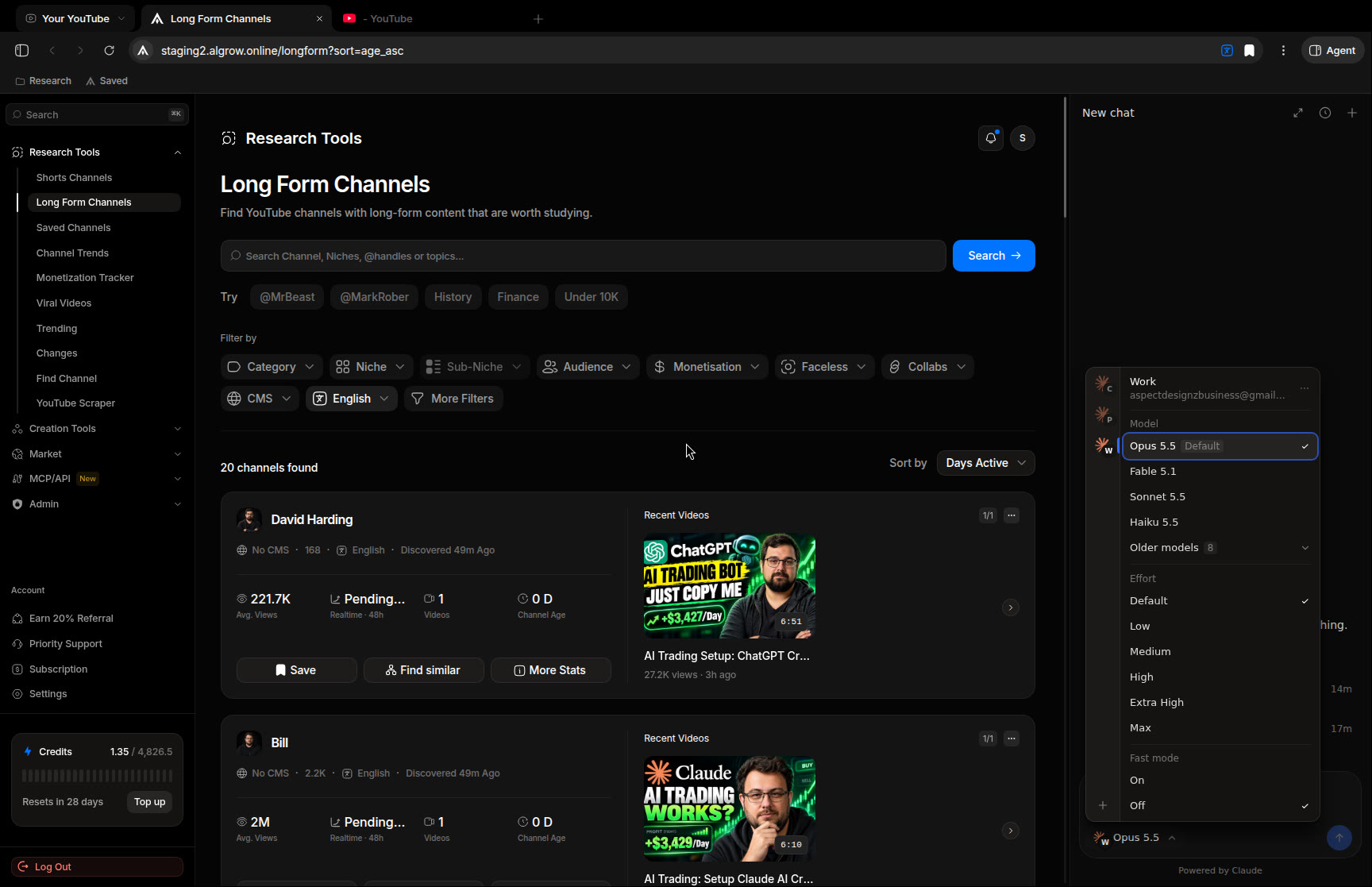
The model menu under the chat box: your accounts on the left, each with its initials, and the models of the one you pick on the right.
More than one Claude account
A work plan and a personal one, or a second account for when the first hits its usage limit: the Agent can use any of them. Each account shows its email and plan, so you always know which one is running.
Add an account
Open the model menu under the chat box and press + at the bottom of the account strip.
Give the account a name, like Work, and press Continue.
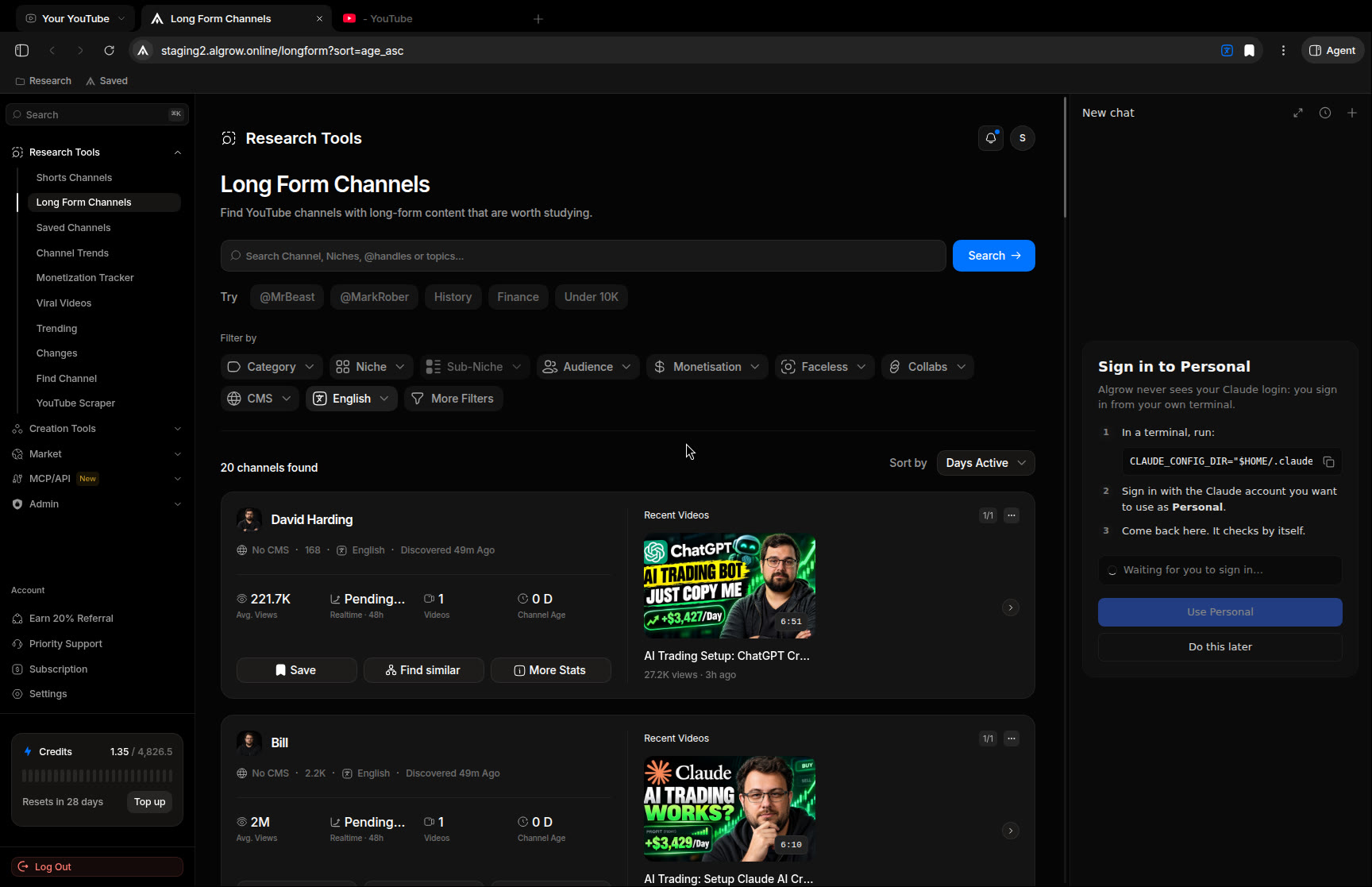
Copy the command it shows, run it in a terminal, and sign in with the Claude account you want for Work.
Come back to Algrow. It sees the sign-in by itself and shows your email. Press Use Work.
Adding an account: the command for your terminal, and Algrow waiting for you to sign in.
Algrow never sees your Claude login. You sign in from your own terminal, the same way Claude Code always works.
Switch accounts
Click an account in the strip to see its models, then pick one to switch.
The button under the chat box shows the account's initials, so you can see which one you're on.
Each chat stays on the account it started on. Switching starts a new chat, and opening an old chat switches back to its account.
Press ⋯ next to the account's name in the model menu. Removing an account only takes it off Algrow's list: it stays signed in on your computer, so adding it again brings it straight back.
Pick the model
The button under the chat box shows what you're on, like “Opus 5.5 · High”. It opens one menu with the model, the effort and fast mode. Older models are tucked under Older models. Your pick applies from your next message.
Spaces
Spaces
Each space is its own YouTube viewer, with its own history and its own home feed. You only see one space's tabs at a time, so a cooking video never ends up in your woodworking feed.
Switch spaces with the button left of your tabs. Each space keeps its own tabs and its own YouTube feed.
Why it matters
YouTube decides what to show you from everything you watch. So your own feed can't tell you what a cooking channel's viewers are being pushed. A space starts as a fresh viewer, and only learns from what you watch in it.
Make a space
From a niche or a channel
Open the space menu and pick New space from a niche or channel. It trains straight away. See Train a space.
Create without training
Pick a niche and click Create without training. The space is made now, named after the niche, and you can train it any time with Train more.
Ask the Agent about a space
Ask “what is my Pitbull space recommending?” or “what is YouTube pushing in this space?”. The Agent opens that space's YouTube home in the background, without playing anything, and you watch it scroll live in the chat. It then lists the videos with their Algrow numbers and says which channels and subjects the feed keeps showing. You don't need the space open.
Let the Agent manage spaces
Anything you can do from the space menu, you can ask for: “rename my Pitbull space to Pitbull Research and make it red”, “turn off autoplay in all my spaces”, “make a new space called Woodworking”, “switch to Pitbull Research”, or pause and resume a space's training. Deleting a space asks you first.
Move between spaces
Switch: click the space button left of your tabs, or press ⌘⌥1 to ⌘⌥9.
Search: the spaces menu has a search box, for when you have lots.
Your YouTube: your normal signed-in YouTube, outside every space (⌘⌥0).
Everything stays in its space
New tab (⌘T) opens in the space you're in.
Recently Closed and ⇧⌘T only show the space you're in.
Links from Algrow open in the space you're in. See Algrow + YouTube.
Use cases
Study a niche from the insideSee exactly what YouTube pushes to someone who watches that niche.
Spy on a competitor's audienceTrain on their channel and see what their viewers get next.
Spot what's risingA space's home feed shows the videos YouTube is pushing right now.
Spaces
Train a space
Training plays a niche's best videos in the space, so YouTube learns it. Its home feed then fills up with that niche.
New space from a niche: pick Home & DIY, then Woodworking. Or paste a channel. Then play the first video.
From a niche
Choose a niche, then any of its sub-niches. Algrow lines up that niche's six biggest breakouts from the last 30 days, shown as Algrow video cards with their outlier multiple, tags, subject and title format, so you know exactly what the space will learn.
From a channel
Switch to From a channel and paste a channel link, an @handle, a channel ID or a video link. Algrow lines up that channel's six most viewed recent uploads, and the space is named after the channel.
From the Agent
Ask the Agent: "make a Woodworking space and train it", "train my Pitbull space on Cane Corso", or name a niche, a topic or a channel. Your page stays where it is. The videos play in the space's own tab in the background, and the chat shows the training live: the video playing, which of the six it is on and how much has played. Click the picture to see it bigger. It keeps going after the Agent's reply, and you can ask the Agent to pause or resume it. When it's done, the chat shows the videos it watched and See your feed.
While it trains
It runs by itself
Each video plays two minutes of itself, muted, at 144p and 2x speed: about a minute each, then the next starts by itself. Six videos take about 6 minutes. You don't have to watch.
See how far it is
The video playing shows how much of its two minutes has played, how much is left and where the video is. Pause it and training waits: it says Paused, stops counting, and has a Resume button. A video that won't play is skipped after a few seconds.
Keep working
Use other tabs or other spaces. Training carries on in the background, and a pill in the tab bar shows how far it has got.
Pause and resume
Close pauses training. Resume it from the space's … menu.
Train more
Any space can be trained again from its … menu: on the same niche, a new one, or a channel.
Spaces
Space settings
Double-click the space button to rename it. Pick a colour, and switch autoplay on or off.
Name and colour
Rename: double-click the space button, or … then Rename… in the space menu.
Colour: each space has a colour, shown on its button and faintly across the tab bar.
Or ask the Agent: “rename my Pitbull space to Pitbull Research and make it red”.
Keep the feed clean
Autoplay next video: off by default, so YouTube's Up next can't teach the space something else.
Pause when you open another video: stops a video when you switch to another YouTube tab.
Delete a space
Hover a space in the menu, click …, then Delete. Algrow asks first. Its tabs close and YouTube forgets its history.
In the Window
Algrow + YouTube
Algrow pages and YouTube sit side by side in the same window, and each knows about the other.
A video clicked on Viral Videos opens in your space. One click sends it to Your YouTube instead.
Videos open in the right space
A YouTube video you open from an Algrow page opens in the space you're in. A note shows for five seconds: Opened in Beekeeping · Open in Your YouTube instead. Click it if that video shouldn't teach this space.
The Algrow extension is built in
Every YouTube tab runs the Algrow extension, already signed in to your account. Nothing to install.
Keeps playing
Videos keep playing when you switch to an Algrow tab or another app.
In the Window
Translate
Read YouTube and Algrow pages in any of 19 languages, like Chrome's translate but built for research.
Research a Spanish niche in English: a space trained on a Spanish channel, Translate switched on, and the whole feed reads in English. Hover any title for the Spanish original.
How it works
Click the translate button next to the bookmark star. Switch it on and pick a language.
Titles and text turn into your language as the page loads and scrolls, the ones on screen first.
Hover a translated line to see the original.
It stays on for every tab until you switch it off.
Why it's useful
Research other countriesRead a Spanish or Japanese niche's titles without copying them anywhere.
Work in your languageSee Algrow and YouTube in your own language.
Spot ideas to bring overFind formats that work abroad but nobody makes in English yet.
Your daily allowance
The translate box shows how much of today's translation you've used and when it resets. Translate is included with Algrow plans.
In the Window
Daily tasks
Research that runs by itself. A daily task is a prompt the Agent runs every day at a time you pick, on your computer. Each run is a new chat, and you get a notification when it's done.
Make one
From an answer
Got an answer you'd like every morning? Click the clock (Run this every day) beside Copy under it. The prompt is filled in; pick a time and press Save.
From Chats
Tasks sit at the top of Chats. New task opens the task screen: write the prompt, pick the model and the time, and press Save. A task starts with no memory of your chats, so put everything it needs in the prompt: the channels, what to find and how to show it.
By asking
Tell the Agent “check my saved channels for new uploads every morning at 8”, or “run this in 10 minutes”, and it makes the task for you.
What a run looks like
Each run is a chat under the task, with its answer and links to the Algrow pages it read.
A notification tells you when a run is done. Click it to open the run.
Each run says how it went: done, ran late, missed, failed or running.
Run now, Pause and Delete are at the top of the task.
It runs with the app closed
At the task's time, your Mac or Windows PC opens Algrow in the background, runs the task, sends the notification and closes it again. If the computer was asleep or off at that time, it runs as soon as it's back.
Good first tasks
Breakouts since yesterdayLong-form videos in your niche that got 5x their channel's usual views since yesterday, with titles you could make.
New uploads from competitorsWhat the channels in your saved folders uploaded since yesterday, and which ones are doing better than usual.
Trending Shorts todayWhat's trending in Shorts in your niche today, and which formats keep coming up.
Tasks run on the Claude account they were made on, with the model you chat with.
In the Window
Browsing
It works like Chrome, so there's nothing new to learn.
Address bar
⌘L. On YouTube it searches YouTube; on an Algrow page it searches Viral Videos. Or paste an address.
Tabs
Drag to reorder. Right-click to pin, mute, duplicate, move to a new window, or close the others. Reopen a closed tab with ⇧⌘T.
Bookmarks
⌘D saves a page. The bookmarks bar (⇧⌘B) holds pages and folders, and the bookmark manager (⌥⌘B) works like Chrome's.
And the rest
Find in page:⌘F.
Full screen: move the mouse to the top and the tabs slide down.
Offline: if Algrow can't be reached, the app says so and tries again by itself.
Links to other sites open in your normal browser.
Help
Updates and reports
Updates
The app updates itself and shows what's new since the version you have. To check now, open the Algrow menu and click Check for Updates…. To try new features before everyone else, tick Beta Updates in the same menu. You can keep working while the update box is open.
Something broke?
Open Help → Send Logs to Algrow…, add a note and click Send. You'll get a code like K7QD-3F. Post it on Discord with a screenshot and we can see exactly what happened.
Crashes and freezes are reported to us by themselves, so we often know before you tell us.
Tell us
Send bugs and ideas to Sam on Discord: what's confusing, slow or broken, and what you'd want next.
Share this guide
This guide lives at algrow.online/desktop. Send that link to anyone who wants to try the app.
Help
Known issues
Windows shows a security warning on install (the app isn't signed for Windows yet).
The Agent needs Claude Code installed and signed in on your computer. The Claude app alone isn't enough.
Daily tasks run on the computer they were made on. They don't follow you to another one.
YouTube rounds the numbers it shows. The Agent's numbers are exact.
 Algrow